# Creating a Read Progress Bar in React and TailwindCSS
Recently, I was reading one of my favorite author's articles on his website. I realized he has a reading progress bar at the top, which helps gauge how much of the article is left to read.
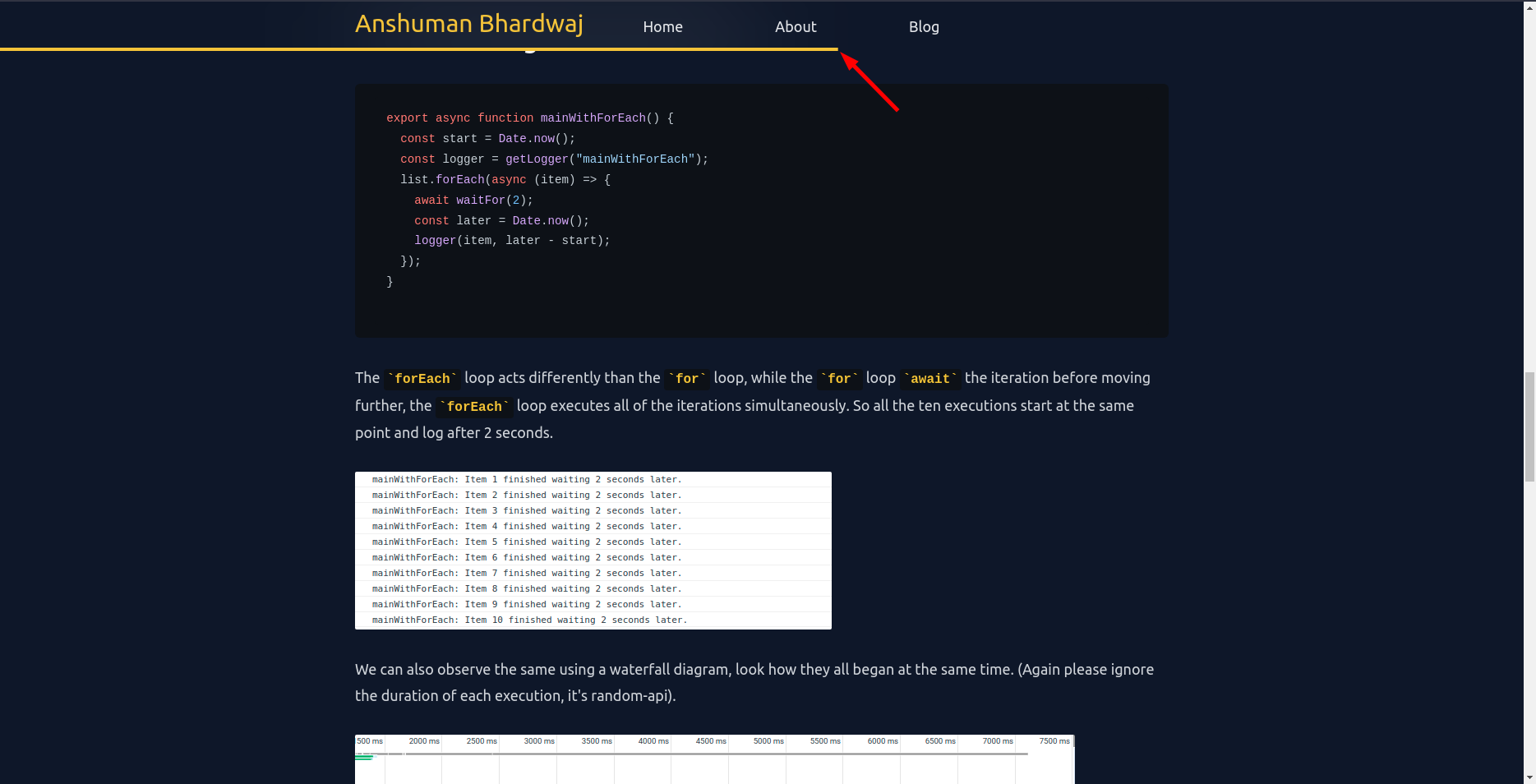
I thought this makes for a good user experience, and I should add this to my articles on my [personal website](https://theanshuman.dev/articles/creating-a-read-progress-bar-in-react-and-tailwindcss-g1n) as well. So, I went ahead and did it.
## Breakdown
1. Find how much a user **can scroll** down on this page.
2. Find how much the user **has scrolled** down on the page.
3. Get the ratio by dividing the later by the former.
Voila, there we have our scroll percentage aka "reading progress".
## Code snippet
```ts
import { useEffect, useState } from "react";
/**
* React Hook to get the scroll percentage from the page, returns a value from 0 to 100
*/
export function useReadingProgress() {
const [completion, setCompletion] = useState(0);
useEffect(() => {
function updateScrollCompletion() {
// see how much we have scrolled
const currentProgress = window.scrollY;
// see how much total scroll is available
let scrollHeight = document.body.scrollHeight - window.innerHeight;
if (scrollHeight) {
setCompletion(
Number((currentProgress / scrollHeight).toFixed(2)) * 100
);
}
}
// add scroll event listener
window.addEventListener("scroll", updateScrollCompletion);
// remove scroll event listener on umount
return () => {
window.removeEventListener("scroll", updateScrollCompletion);
};
}, []);
return completion;
}
```
The rest of the work is to show this information on the UI, for that, I just show a progress bar on the NavBar up top.
## Styling
I use TailwindCSS for my website and it was very easy to make this progress bar with it
```tsx
export default function NavBar() {
const completion = useReadingProgress();
return (
);
}
```
We use the `transform` and `translate` CSS properties to make the UI for the progress bar.
The `#progress-bar` is by default exists at the bottom of `NavBar` but by using `translateX` we move it across the X-axis.
Because we do `translateX(${completion - 100}%)`
- At 0% progress, it translates -100% on the X-axis, making it _disappear_
- At 100% progress, it translates 0% on the X-axis, showing it _fully_
---
That's it for now. I hope you find this article helpful! Should you have any feedback or questions, please feel free to put them in the comments below, I would love to hear and work on them.
For more such content, please follow me
- [Follow me on Twitter](https://twitter.com/sun_anshuman)
- [Subscribe to my YouTube channel](https://www.youtube.com/channel/UC9-rIQbbBVxJyTIWPdhK4YA)
- [Follow me on Medium](https://anshuman-bhardwaj.medium.com)
> Until next time